What Is No-Code Automation? Triggers, Actions and When to Use It
What is no code automation? It is a way to connect your apps so routine work happens automatically, without writing code. When a new customer fills in a form, a no-code automation can add them to your spreadsheet, send a welcome email and create a follow-up task, all in seconds and every time. For small businesses, that means fewer copy-paste jobs, fewer forgotten steps and more time for real work. This explainer covers the core concepts, examples, tools, costs and when automation is a bad idea.
The building blocks
Triggers
A trigger is the event that starts the automation:
- A new form submission.
- A new email with a certain subject.
- A new row in a spreadsheet.
- A payment received.
- A scheduled time, such as every Monday at 9 am.
Actions
Actions are what happens next:
- Add a row to a spreadsheet.
- Send an email or chat message.
- Create a task or calendar event.
- Update a CRM record.
Workflows
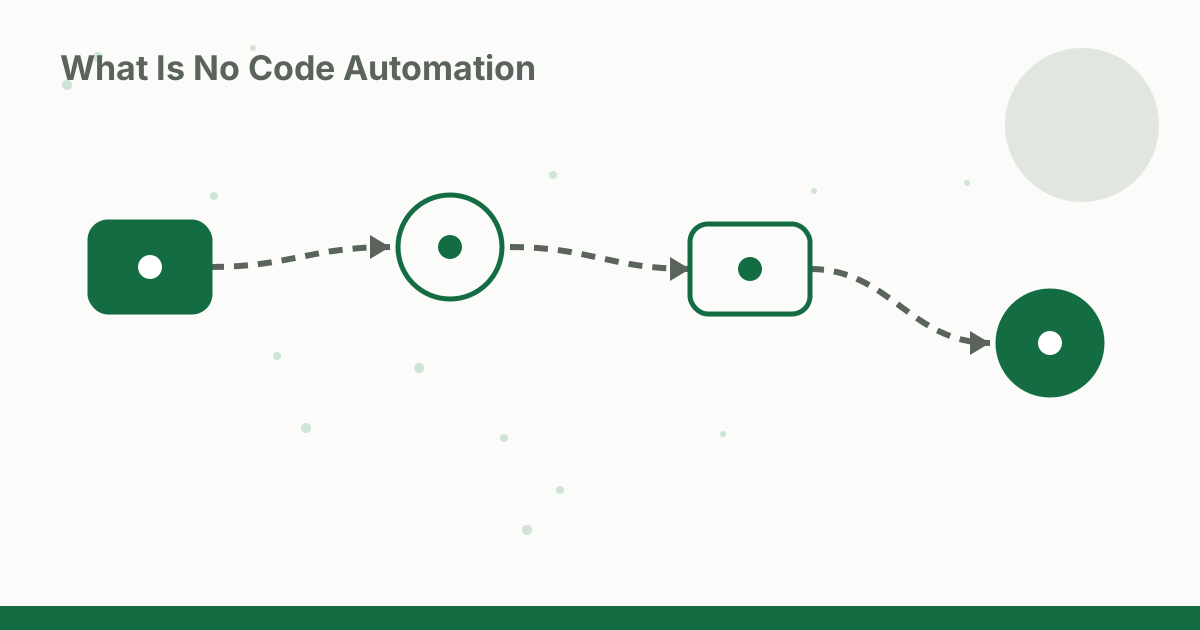
A workflow is a trigger plus one or more actions. Workflows can include:
- Filters: only continue if a condition is true, such as order value over $100.
- Paths or routers: do different things based on conditions.
- Delays: wait before the next step.
- Formatting: clean up dates, names or numbers.
- AI steps: summarize, classify or draft text.
What is no code automation used for? Real examples
- New lead: form submission, then add to CRM, send welcome email and notify sales in chat.
- New order: payment received, then add to order sheet, send thank-you email and create a packing task.
- Invoice reminders: daily schedule, then find unpaid invoices and send reminders.
- Social posting: new blog post, then draft social posts with AI for review.
- Customer feedback: new review, then classify sentiment with AI and alert the owner to negative reviews.
Popular no-code automation tools
The best-known platforms are Zapier, Make and n8n, each with different strengths: Zapier for ease and app coverage, Make for visual complex workflows, and n8n for flexibility and self-hosting. Our Zapier vs Make vs n8n comparison explains the trade-offs, and our n8n tutorial for beginners shows how to build your first workflow. For ready-made recipes, see our guide to Make.com AI templates.
What it costs
Most platforms offer free plans and charge for higher volumes:
- Tasks or operations: each action that runs usually counts. For example, Zapier's free plan includes 100 tasks a month.
- Steps: free plans may limit workflows to two steps.
- Polling speed: cheaper plans may check for new data less often.
Estimate monthly volume before choosing a plan. For the broader picture, see what AI automation costs.
How to start
- List repetitive tasks you do weekly.
- Pick one that is frequent, rule-based and low-risk.
- Write the steps in plain language: "When X happens, do Y, then Z."
- Build it on a free plan.
- Test with real data and check every step.
- Monitor for a week before trusting it fully.
When automation is a bad idea
- The process is unclear or changes every week.
- Mistakes are costly and there is no review step.
- It happens rarely, so setup takes longer than doing it manually.
- It involves sensitive data without proper security and agreements.
- It replaces a human conversation customers expect.
For workflows where judgment matters, add approval steps; see our guide to human-in-the-loop AI automation.
No-code automation and AI
AI steps make automations smarter: summarizing emails, classifying requests, drafting replies or extracting details from documents. Keep humans reviewing anything customer-facing or high-stakes, especially early on. For a more advanced example, see our guide to building an AI agent with n8n.
Keeping automations healthy
Automations need light maintenance:
- Name workflows clearly, such as "New lead – add to CRM and notify sales".
- Keep a simple list of what runs, what it does and who owns it.
- Turn on error alerts so failures reach a person quickly.
- Review monthly for broken connections, outdated steps and workflows nobody uses.
- Update when tools change, especially after an app's settings or fields change.
From one automation to a system
Start with one workflow, then add others that share data, such as a lead workflow feeding a follow-up workflow. Over time, you build a connected system where routine work flows between apps. Keep it understandable: a few clear workflows beat dozens of tangled ones.
A five-minute exercise
List every task you did this week that involved copying information from one app to another. Next to each, note how often it happens and how long it takes. The task at the top of that list, frequent and repetitive, is your first automation.
No-code automation vs hiring help
For a few simple workflows, doing it yourself on a free or low-cost plan is usually best. For complex, business-critical systems, such as order processing across several apps or finance workflows, consider hiring an automation specialist for the initial build and documentation, then maintain it yourself. Either way, make sure someone in the business understands what each automation does.
Security basics
Connect apps with accounts that have only the permissions needed, keep passwords and API keys out of shared documents, remove access for people who leave, and avoid sending sensitive personal data through automations unless your tools and agreements allow it.
Questions to ask before automating
Is the process stable? Who should be alerted if it fails? What happens if it runs twice? Which data is involved, and is it sensitive? Answering these four questions before building prevents most automation headaches.
Common mistakes
- Automating a messy process instead of fixing it first.
- No error alerts, so failures go unnoticed.
- No documentation, so nobody knows what runs where.
- Too many tiny automations instead of a few clear ones.
FAQ
What is a trigger?
The event that starts an automation, such as a new form submission, a new email or a scheduled time.
What is an action?
Something the automation does after the trigger, such as adding a row to a spreadsheet, sending an email or creating a task.
Do I need to know how to code?
No. No-code tools use visual builders where you choose apps, triggers and actions from menus. Some offer optional code steps for advanced users.
How much does no-code automation cost?
Many tools have free plans with limits. Paid plans are usually priced by tasks or operations per month. For example, Zapier's free plan includes 100 tasks a month.
Can no-code automation use AI?
Yes. Many platforms include AI steps that summarize, classify or draft text inside a workflow.
Conclusion
What is no code automation? Connecting your apps with triggers and actions so routine work runs itself, without code. Start with one frequent, low-risk task, test carefully, add review steps where judgment matters, and grow from there. A few well-built automations can give a small business back hours every week.
Sources and methodology
Explainer based on how common no-code automation platforms work. Zapier's free plan limit comes from https://zapier.com/pricing, checked 14 October 2026. No time-savings statistics are claimed.