Create AI Workflow in Notion: Databases, Prompts and Review Steps That Hold Up
To create AI workflow in Notion that your team keeps using, design the data first and the AI second. Notion works best when work is stored in databases with clear properties such as status, owner, date and source. Notion AI can then summarize, draft, extract and answer questions across that structure. According to Notion's pricing page, checked on 15 October 2026, Free and Plus plans include a trial of Notion AI, Business includes Notion Agent, AI meeting notes and enterprise search, and Custom Agents are free to try and then priced at $10 per 1,000 monthly Notion credits. This guide shows how to build a dependable workflow, with review steps and cost checks.
What an AI workflow in Notion looks like
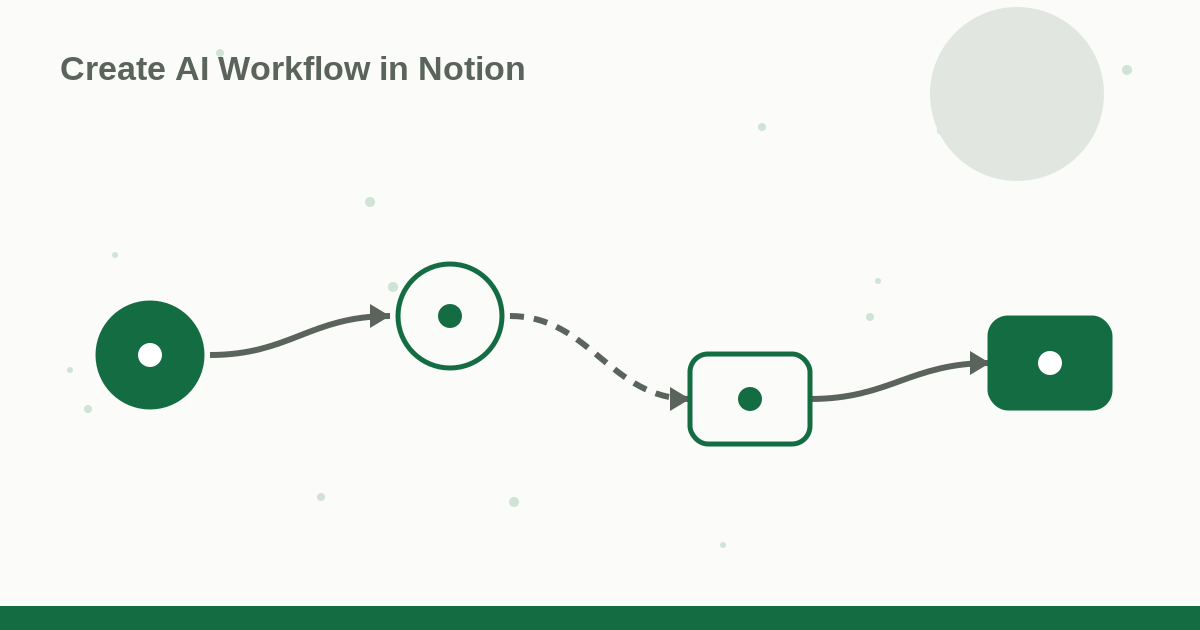
A workflow takes an input, such as a meeting note, a client request or a customer email, runs a defined AI step, such as summarizing, extracting tasks or drafting a reply, and stores the result where the team can use it, usually in a database. A person reviews the result before it matters. The goal is a repeatable process, not a clever one-off prompt.
Check which features your plan includes
Notion's pricing page lists a trial of Notion AI on Free and Plus and says Business includes Notion Agent, which completes multi-step tasks, plus AI meeting notes and enterprise search (marked beta). Enterprise adds zero data retention with Notion's AI model providers. Custom Agents are free to try and then charged at $10 per 1,000 monthly Notion credits. The page's comparison table was ambiguous about exact limits, so check your plan's current features before designing around them.
Step 1: Pick one repeatable process to create AI workflow in Notion
Choose a process that happens at least weekly, has a clear input and output, and where mistakes are cheap to fix: turning meeting notes into action items, triaging customer requests, summarizing research or drafting weekly updates. Avoid starting with processes involving legal, financial or HR decisions.
Step 2: Design the database
Create a database with the properties your process needs: title, source, date, owner, status, category and a link to the original note. Use select properties with fixed options for status and category so results are consistent. Add a "Reviewed by" property and a "Needs review" status. Good structure makes AI outputs searchable and reportable.
Step 3: Write the prompt and the rules
Write down the instruction the AI step will follow and test it on real examples. Be specific about format, length and what to do when information is missing. Example: "From this meeting note, list decisions, action items with owners and due dates, and open questions. If an owner or date is not stated, write 'not stated'. Do not add information that is not in the note."
Prompts that work well
- "Summarize this client request in two sentences and suggest a category from: billing, bug, feature request, other. Quote the sentence that supports the category."
- "Extract tasks from this page as a list with owner and due date. Mark guesses as [CHECK]."
- "Draft a weekly update from the items in this database marked 'Done' this week. Use plain language."
- "Answer the question using only pages in the 'Policies' database. If the answer is not there, say so.
Step 4: Test with real examples
Run the workflow on at least ten real items, including messy ones. Score each output for accuracy and usefulness. Note where the AI invents details or misses information, and improve the prompt or the database properties. Test again. Do not roll out to the team until errors are rare and understood.
Step 5: Add a human review step
Make review part of the workflow: AI outputs land in a "Needs review" view, and a named person approves or edits them. Use a checklist: facts match the source, owners and dates are correct, nothing sensitive is exposed. Keep review light but real. See our guide to human-in-the-loop AI automation.
Step 6: Watch credits and costs
Notion says Custom Agents use Notion credits beyond the free trial, at $10 per 1,000 monthly credits. Estimate how often each workflow will run and what it will cost before you scale. Run a pilot for a month and review usage. Heavy automation can become expensive if triggered on every edit, so use clear triggers.
Step 7: Set permissions and privacy
Notion AI works with content a user can access, so check page permissions first; an overshared workspace will produce overshared answers. Keep sensitive pages in restricted teamspaces and avoid putting confidential data into workflows unless your plan and policies allow it. See our guide on whether it is safe to upload files to ChatGPT for general principles.
Step 8: Connect to other tools
For inputs from email, forms or chat, you may need automation tools. See our Zapier vs Make vs n8n comparison and our guide to Make.com AI templates. For meeting notes in Notion, consider consent and policies for recording. For comparisons with another workspace, see our Microsoft Copilot for small business guide.
Measuring value
Track time spent on the process before and after, error rates found in review, and team satisfaction. Compare with credit costs if you use paid features. If review time exceeds the time saved, simplify the prompt or database.
Example: turning meeting notes into tasks
A small agency creates a Meetings database with properties for date, client, attendees and status. After each call, someone pastes notes into a new page. An AI step lists decisions, action items with owners and due dates, and open questions, marking anything unclear as [CHECK]. The account manager reviews the list in a "Needs review" view, fixes two owners and approves. Approved tasks flow into a Tasks database. The agency spends less time on follow-ups, and fewer actions get lost.
Common mistakes
- Starting with messy pages instead of structured databases.
- No review step.
- Triggering AI on every edit, which burns credits.
- Ignoring permissions.
- Building complex workflows before simple ones work.
FAQ
Which Notion plans include AI?
Notion's pricing page lists a trial of Notion AI on Free and Plus, and Notion Agent, AI meeting notes and enterprise search on Business, with limits not fully specified.
What are Custom Agents?
Notion lists Custom Agents as free to try, then $10 per 1,000 monthly Notion credits.
Can Notion AI see all my pages?
It works with content a user can access, so page permissions matter.
Do I need to code?
Not for simple workflows built with databases and AI properties, but automation across tools may need connectors.
How do I avoid wrong outputs?
Use clear prompts, structured databases, tests on real examples and a human review step.
Conclusion
To create AI workflow in Notion, start with one repeatable process, design a clear database, write specific prompts, test on real examples and add human review. Check your plan's features, watch credits and permissions, and measure whether the workflow really saves time.
Sources and methodology
Notion plan and AI details come from https://www.notion.com/pricing, checked 15 October 2026; its comparison table was ambiguous about limits per plan. This guide is based on our earlier research and testing of AI assistants, workspace, image and automation tools, linked throughout. It contains no vendor pricing or legal claims beyond those attributed below. Features, prices and platform rules change; check each provider's current terms.